FlowMap is a sitemap and link-health component for Joomla. It builds a list of every public page on your site, writes segmented XML sitemaps for search engines, shows visitors a browsable HTML sitemap, and tracks the 404s, broken links and URL problems that get in the way of both. This page explains how to install it, set it up and use each screen, and what to check when something goes wrong.
Screenshots
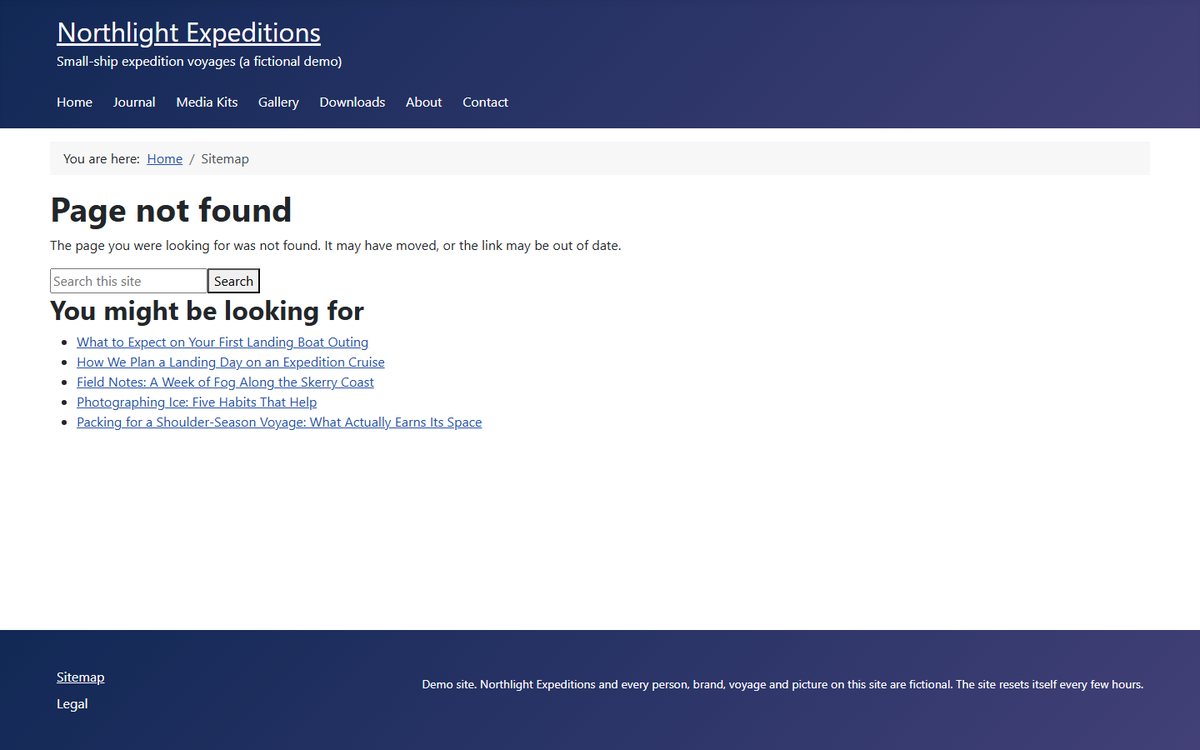
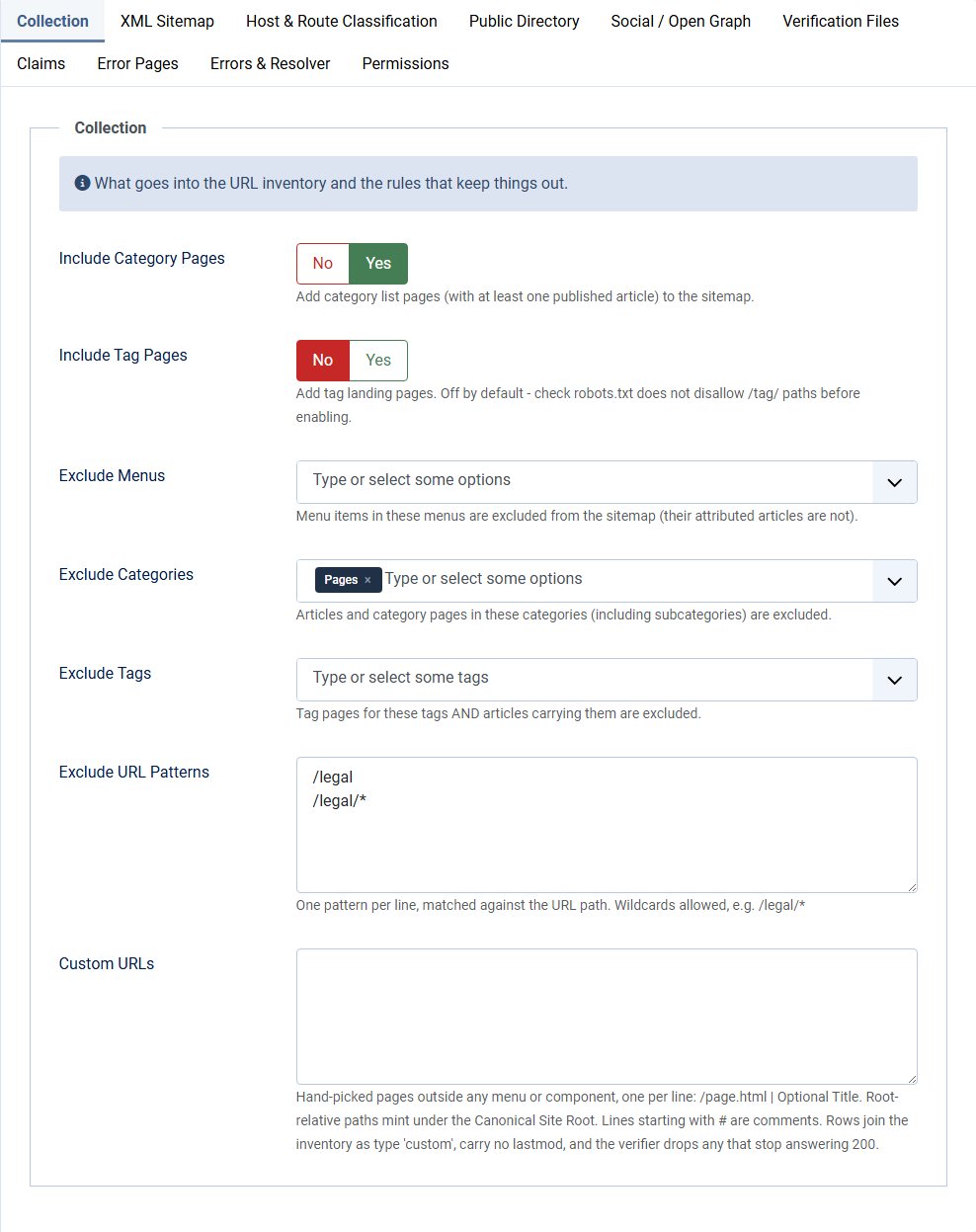
These screens come from the FlowMap demo site, which you can open yourself at demo.flowmediamarketing.com. Click any image to see it full size.

What FlowMap Does
FlowMap keeps an inventory of your site's URLs, collected from menu items, articles, categories, tags and any custom URLs you add. Everything else in the component works from that inventory.
- XML sitemaps at
/sitemap.xml, split into files (pages, articles, categories and, when enabled, tags). Article files are chunked to the size you choose. - A public HTML sitemap page with a menu tree and a filterable, searchable article directory.
- A flat list of every indexable URL at
/sitemap-all.html, meant for machines such as recache crawlers and link-audit jobs. - Tracking of 404s from Joomla's own log, with a triage screen for fixing them at the source, redirecting them or retiring them with a 410.
- Link checking: which pages link to a page, which links on a page are broken, and which pages have no internal links pointing at them.
- Routes (redirects), branded 404 and 410 pages, per-page share image and meta tags, robots overrides, verification tags and structured data.
Install and Update
FlowMap installs as one package, pkg_flowmap. It contains the component and four plugins.
- System - FlowMap Serve serves the XML sitemaps, rebuilds the inventory when content changes and keeps lastmod dates honest. FlowMap needs it to work.
- Task - FlowMap adds the scheduled rebuild task.
- System - FlowMap Error Pages shows your branded 404 page when the feature is switched on.
- System - FlowMap Cache Purge clears the JCH Optimize page cache for one article when you save it.
- In the Joomla administrator, open System, then Install, then Extensions.
- Upload the
pkg_flowmappackage. - Open Components, then FlowMap.
The package declares an update stream. Once a version that carries it is installed, Joomla's Update screen offers new versions. Updates and downloads need no key. The Gate plugin (System - FlowMap Gate) is a separate download and is not part of the package.
FlowMap has been verified on Joomla 5.4 and Joomla 6.1. Uninstalling the package removes all FlowMap database tables.
Your First Build
- Open Components, then FlowMap. The Dashboard shows "No inventory yet - run your first build." until a build has run.
- Click Rebuild Now in the toolbar. The notice reports how many URLs were found, how many were added and removed, and how long it took.
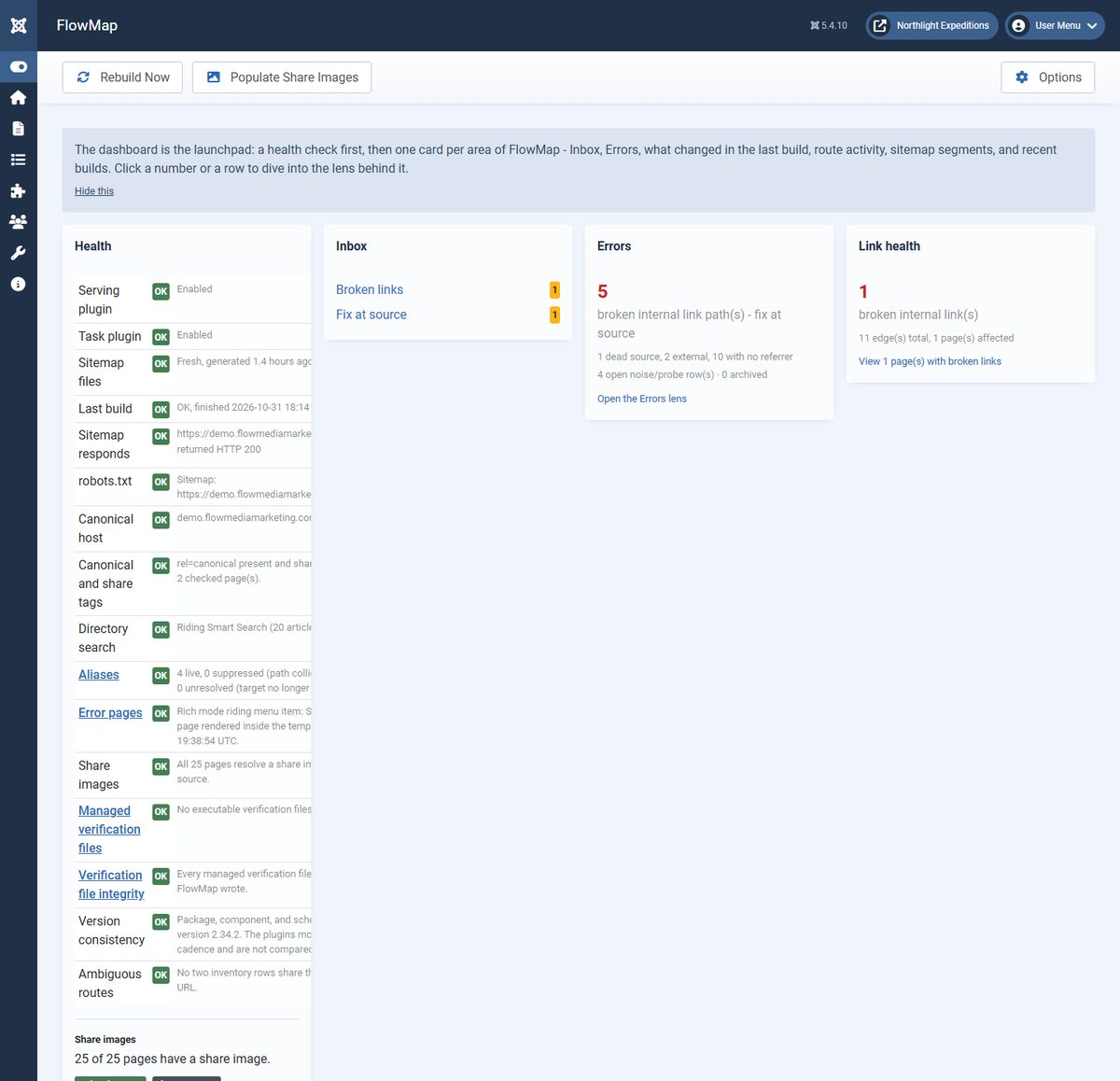
- Look at the Health panel. Each row is marked OK, informational, warning or failed. A row that says "Not generated yet" means the sitemap files do not exist yet.
- Open
/sitemap.xmlon your site to see the sitemap index. - Submit that address to the search engines (see "Robots and Sitemap Submission").
Rebuild Now also requests the public sitemap, so the build runs in the same context as a real visitor. A build run only from the administrator can produce URLs that differ from the live site, and the Health panel warns when the last build ran that way.
The Admin Screens
The FlowMap menu under Components has these screens: Dashboard, Pages, Routes, Inbox, Errors, Rules, Error Pages, Gates, Migration and Providers. Options is in the toolbar. Gates only appears when the Gate plugin is enabled. Each screen has a "What is this?" note that you can hide.
Dashboard
The Dashboard is the launchpad. The top cards show URLs in inventory, In sitemap, Excluded / noindex, Orphan articles, Awaiting verification and Aliases serving. Below them are the Health panel, an Inbox card, an Errors card, a Link health card, a Share images card, Sitemap segments (URLs in each file) and Recent builds with trigger, URL count and duration. "Last build detail" includes "What changed", which lists which fields moved on how many rows, so an unusual build is easy to spot.

The Health panel checks, among other things, the serving plugin, the task plugin, whether the sitemap files exist and how old they are, whether the sitemap responds, what robots.txt declares, the canonical host, tag pages against robots.txt, directory search, share images, aliases, error pages, managed verification files and version consistency.
Pages
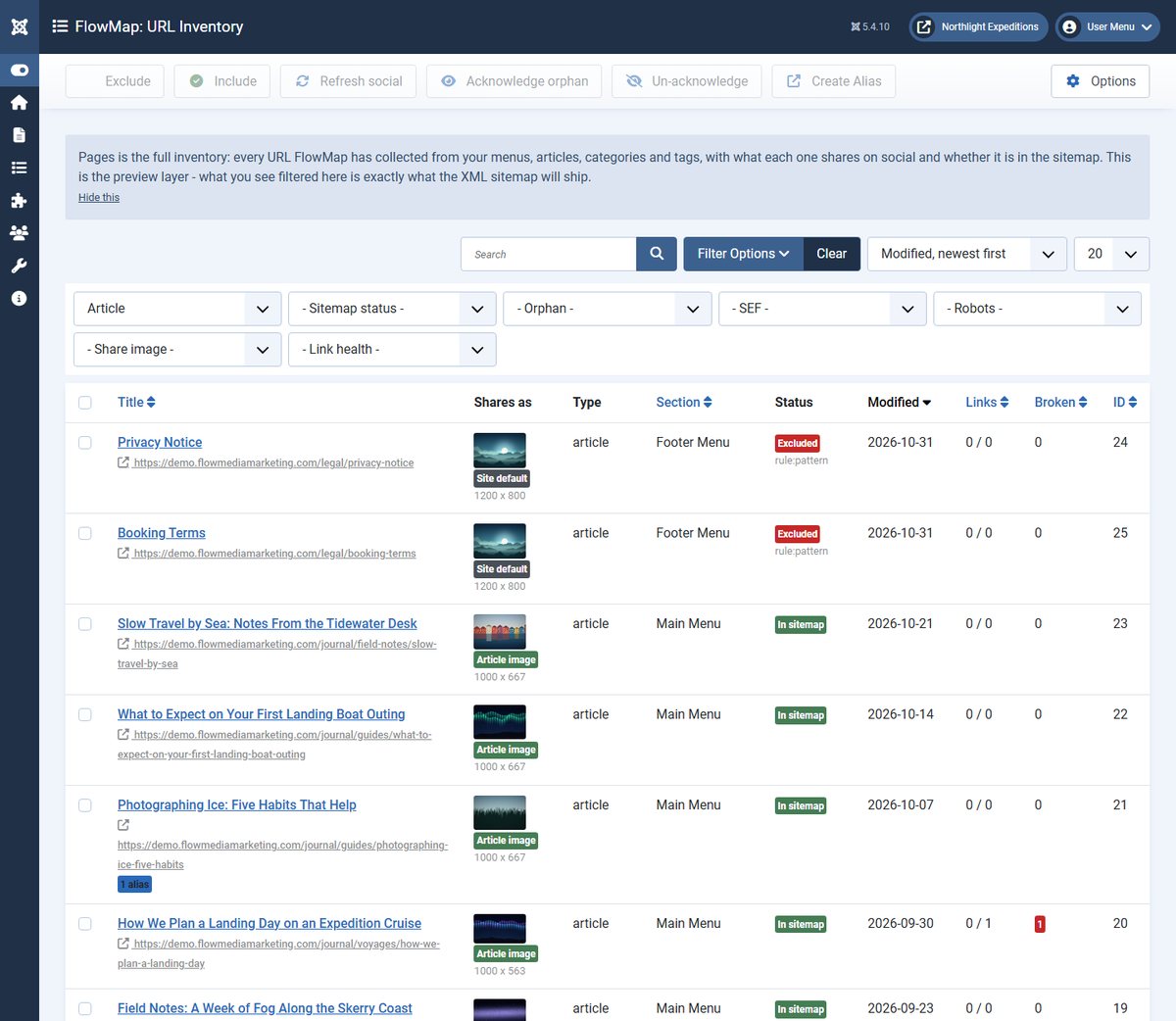
Pages is the full inventory. Every URL FlowMap collected is listed with its type (Menu, Article, Category, Tag or Custom), section, modified date, links in and broken links, and a "Shares as" column showing where its share image comes from. What you see here filtered is what the XML sitemap ships.

- Filters: search by title or URL, type, sitemap status (Included only, Excluded only), orphan state, SEF, robots (Indexable only, Noindex only), share image source and link health.
- Toolbar: Exclude and Include, Acknowledge orphan and Un-acknowledge, Refresh social, Populate Share Images and Create Alias. Exclusions you make by hand stay. Exclusions that come from rules in Options are applied again on rebuild.
- An orphan is an article that no internal link points at. Acknowledging an orphan keeps it in the sitemap and removes it from the review count.
Click a page to open its record. The record has these tabs:
- Identity holds Social Sharing (Share Image, Share Title, Share Description, with a preview of what the page shares now) and Meta Tags (Meta Title, Meta Description). Anything you set here wins over the automatic value and survives every rebuild. Leave a field empty to use the automatic one.
- Routes lists aliases that point at this page and the page's known URL forms.
- Policy sets a robots override: Search Engine Indexing, Link Following, Max Snippet Length, Max Image Preview and Disable Cached Copy. It also shows how the final indexing decision was reached. Leave every field at its default to remove the override.
- Claims holds an optional Entity URI (Wikidata) and a Raw JSON-LD box that replaces all generated structured data for this page.
- Health shows the page's verified HTTP status, who links to it, where it links out to (each link marked OK, Through a redirect, Links to a retired URL, Broken link, Rides an alternate form, Awaiting verification or Verified broken), and its word count as a thin-content signal.
Saving a page record recomputes its share image, meta tags and robots at once. The sitemap file itself updates on the next build.
Routes
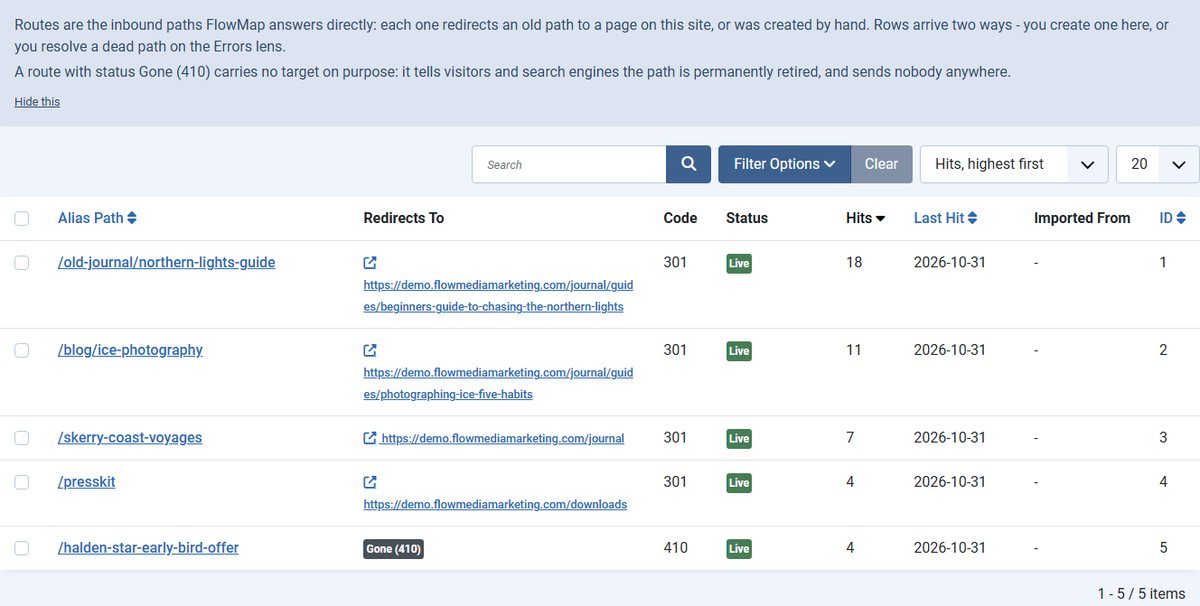
Routes are the inbound paths FlowMap answers directly. Each one redirects an old path to a page on your site, or answers Gone (410). Create one from Pages with Create Alias, from the Routes list with New, or from the Errors screen.
| Field | What it does |
|---|---|
| Alias Path | The incoming path without the domain, for example old-section/old-page.html. It is normalised on save, so one row covers /x, /x/, /x.html and /X. Wildcards and reserved paths (Joomla root folders, index.php, robots.txt, sitemap files) are rejected. |
| Status Code | 301 permanent redirect, 302 temporary redirect, or 410 Gone with no target. |
| State | Live, Disabled, Needs review (the build parks a route here when its target vanishes) or Unresolved. |
| Note | Your own reminder of why the route exists. |
The target is tied to the page itself, not to a URL string, so if you rename the article the route follows. FlowMap refuses a route whose path belongs to a live page, or whose path is already serving something it does not inventory, so a route can never redirect a working page away from itself.

Inbox
The Inbox is the decision queue. Things worth a look land here once: a route whose target vanished, a route that collides with a live page, idle routes, a build that changed an unusual share of pages, pages with verified broken links, staging links in published content, ambiguous routes, managed file drift, noise spikes and markdown refusals. Items have states Open, Deferred, Acknowledged, Regressed, Dismissed and Done, and the toolbar offers Acknowledge, Dismiss, Defer, Reopen and Done. Items that were resolved and then reappear are marked Regressed.
Errors
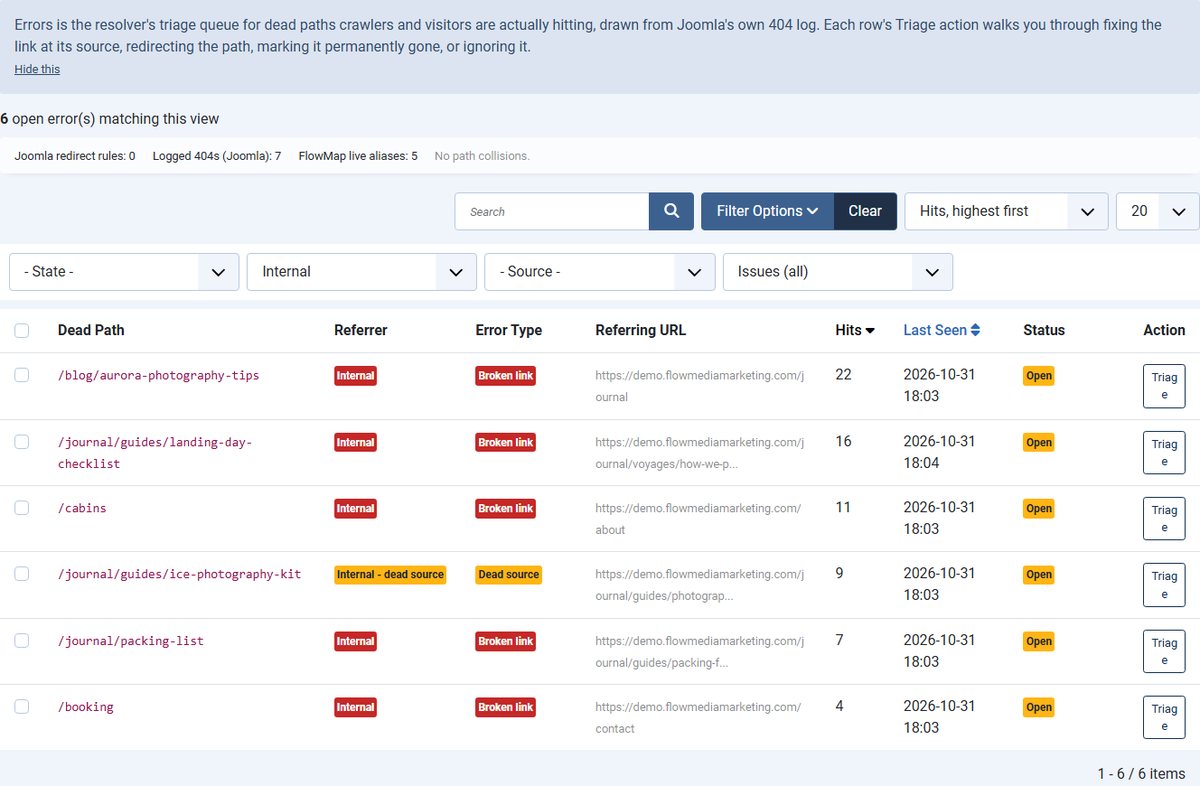
Errors lists dead paths that visitors and crawlers actually request, drawn from Joomla's own 404 log. Each row shows the Dead Path, its referrer class (Internal, External or None), the referring URL, hits, last seen, its Error Type and its state (Open, Ignored, Resolved or Archived).

- Issues are genuine signals: Broken link, Dead source, External and No referrer.
- Noise is scanner and bot traffic: Probe: WordPress, Probe: secrets/config, Probe: script/extension, Cache: stale bundle, Spoofed referrer and Missing site icon. Noise is stored so you can see and filter it, and is never counted as a real error. The screen opens on issues.
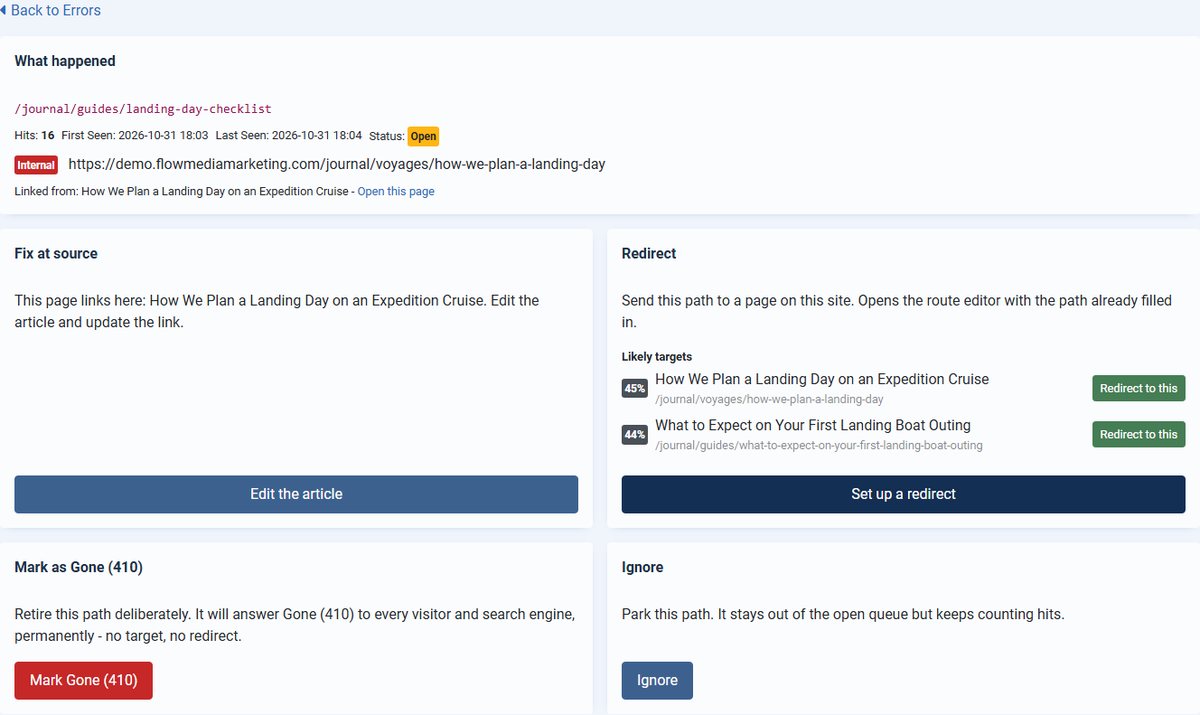
Click Triage on a row to decide what to do:

- Fix at source shows the page that links to the dead path, with a button to edit it. An external link tells you which site to contact.
- Likely targets shows up to three suggested pages with a match figure and "Redirect to this". Nothing redirects until you click.
- Set up a redirect opens the route editor with the path filled in.
- Mark Gone (410) retires the path permanently. You can also mark several selected rows at once, up to 100 per run.
- Ignore parks the path. It stays out of the open queue but keeps counting hits.
- Make this repair permanent appears when a deterministic URL repair already sends visitors to the right page. It turns that into a stored route.
An open row whose last hit is older than "Unresolved Recency Window (days)" moves to Archived and reopens on its own if it is hit again. Start Fresh (core.admin only) permanently deletes every Open and Archived row. Ignored and Resolved rows, routes and Joomla's own redirect table are kept. It stays disabled until Joomla's Redirects manager has purged its old unpublished rows, and it links to that purge.
Rules
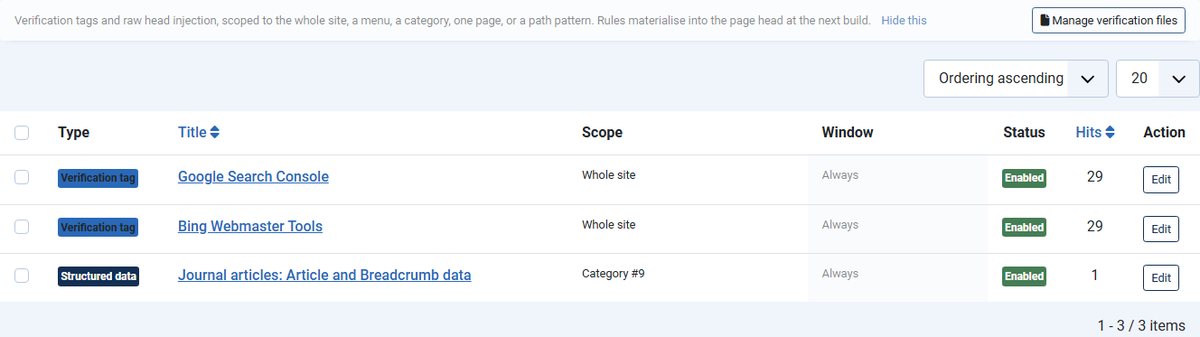
Rules put tags into the head of pages. Each rule has a scope (Whole site, Menu, Category, One page or Path pattern), optional Starts and Ends dates, and an ordering. Rules take effect at the next build.

- Verification tag: choose a provider (Google Search Console, Bing Webmaster Tools, Pinterest, Facebook Domain Verification, Yandex Webmaster or Ahrefs Site Verification) and enter the Verification Token. The meta tag name is fixed per provider.
- Injection: raw code placed in the head, for analytics or pixels. It requires the core.admin permission, and every save is hashed and attributed to the user.
- Structured data: turns on Article and Breadcrumb JSON-LD blocks and, optionally, a publisher block for pages in scope. It uses only the page's own title, dates, author and category. A page covered by no rule gets no structured data.
The Manage verification files link opens the Files screen, where you can Generate a Verification File from a token, Paste Content or Upload a File. Each file is recorded with a hash, so the Health panel and the Inbox tell you if a file goes missing or is changed outside FlowMap. Only extensions ticked under Options, Verification Files are allowed (html, xml, txt and md by default). The php, phtml and phar extensions are available but marked dangerous. FlowMap refuses to overwrite a file it does not manage, and refuses or warns about active content in managed files.
The Files screen also shows "Security headers for managed files": a block of .htaccess lines with a status of Present and current, Present but stale or Missing. FlowMap never edits .htaccess. Click Copy block and paste it into the file yourself, once, and again when the status says stale.
Error Pages
Error Pages lets you create your own branded 404 and 410 pages. Switch the feature on with Options, then Error Pages, then Enable Custom Error Pages. Until you also create at least one page here, nothing changes. If more than one enabled page exists for a code, the one with the lowest Priority (Ordering) is used.

- Each page has a Headline, Body, Show Technical Details, Show Suggested Pages (up to five related pages from Smart Search, or a title match), Suggestions Heading, Text When No Suggestion Is Found and Show Search Box.
- In rich mode the page uses the template and modules of the menu item named in "Rich Mode Menu Item", so your header, footer and modules appear. In safe mode, used for bot traffic or as an automatic fallback, it is a plain self-contained page.
- A Joomla Redirects rule or a FlowMap route that answers a path first always wins over the error page.
Gates
Gates take over a URL that would otherwise work, for a coming-soon page, a maintenance window or a members-only area, for the visitors and dates you choose. The Gates screen stores the rules, but the separate FlowMap Gate plugin is what evaluates them. Without the plugin the rows exist and do nothing. A gate has conditions (URL patterns, a start and end date, user groups, language), bypass user groups, and an optional VIP bypass code with an expiry and a maximum number of uses. Super Users always bypass gates.
Migration
Migration brings redirects in from a tool you are leaving. The one built-in source is 4SEO (Redirects and Aliases). Choose a source, Scan, Preview and Import. The preview sorts every redirect as Restore, Formalize, Already resolves, Target gone or Unverified, checked against your live site. Import only after the old redirect tool is turned off. While it is still running, every redirect previews as "Already resolves" and nothing is importable. That is expected.
Providers
A provider is a plugin that adds its own pages to the site, for example a tools or games plugin. The Providers screen shows one card per provider with one row per level of page. FlowMap itself decides robots, the XML sitemap and the HTML sitemap for these pages.
- Search Engines: Index or Noindex. A provider that does not declare levels shows "Set by the plugin" and cannot be changed here.
- Window: Off, Next N (a number of days) or All from today, for pages that have a date.
- Minimum: a whole number for levels with a count.
- XML and HTML: whether the level is listed in the XML files and on the HTML sitemap. XML is unticked and disabled when the level is Noindex or its window is Off.
A level with nothing saved shows its default, marked "default (not saved)". Use Reset to default to remove saved settings. A window or minimum only takes effect where the provider asks FlowMap to decide for its pages. The HTML Section area controls whether a provider's pages are listed on the HTML sitemap, with a Section title, Position (before or after the menu tree), Order, Grouping and Cap. Menu Tree Visibility lets you Hide Item or Hide Branch for menu items on the HTML sitemap only.
Viewing the screen needs the core.manage permission. Saving needs core.admin. Changes reach the HTML sitemap at once and the XML files at the next build.
Settings
Open Components, then FlowMap, then Options ("FlowMap Options"). Settings are grouped into tabs.

Collection and XML Sitemap Settings
| Setting | Default | What it does |
|---|---|---|
| Include Category Pages | Yes | Adds category list pages that have at least one published article. |
| Include Tag Pages | No | Adds tag landing pages. Check that robots.txt does not disallow your tag paths first. |
| Exclude Menus | None | Menu items in these menus are left out of the sitemap. Their articles are not. |
| Exclude Categories | None | Articles and category pages in these categories, including subcategories, are left out. |
| Exclude Tags | None | Tag pages for these tags, and articles carrying them, are left out. |
| Exclude URL Patterns | Empty | One pattern per line, matched against the URL path. Wildcards are allowed, for example /legal/*. |
| Custom URLs | Empty | Hand-picked pages outside any menu, one per line, as /page.html | Optional Title. Lines starting with # are comments. Only your own site's addresses are accepted, and any that stop answering 200 are dropped. |
| URLs per article sitemap | 1000 | How many articles go in each sitemap-articles-N.xml file. Range 100 to 49000. |
| Styled XML | Yes | Attaches a stylesheet so a person opening the sitemap sees a readable table. |
| lastmod precision | Full timestamp | Date only, or a full timestamp. Values always come from real content modification dates. |
| Cache max-age (seconds) | 3600 | The Cache-Control max-age on sitemap responses. Range 0 to 86400. |
| Canonical Site Root | Empty | The absolute site root used in every generated URL, for example https://www.example.com/. Set it on any site reachable under more than one hostname. |
| Manage robots.txt Sitemap line | No | See "Robots and Sitemap Submission". |
| Write flat crawl target | Yes | Writes /sitemap-all.html on each build. Turning it off removes the file at the next build. |
Other Settings Tabs
| Tab and setting | Default | What it does |
|---|---|---|
| Host & Route Classification: First-party Hosts | Empty | Extra hostnames to treat as your own. The canonical host and its bare or www variant are always included. |
| Host & Route Classification: CDN Hosts | Empty | Links to these still count as external but are recognised as CDN destinations. |
| Host & Route Classification: Staging Hosts | Empty | A link to any of these hosts in published content is flagged in the Inbox as a mistake. |
| Host & Route Classification: Ignored Query Parameters | utm_*, fbclid, gclid, mc_cid, mc_eid, ref | Stripped from a link before it is matched against your pages. A trailing * matches any parameter with that prefix. |
| Public Directory: Articles per page | 50 | Page size of the public directory. Range 10 to 500. |
| Public Directory: Default sort | Latest updated | Latest updated, Title A-Z or Newest first. |
| Social / Open Graph: Emit Social Tags | No | Emits og: and twitter: tags on front-end pages. Values are resolved at build time. Turn off any other social sharing tool on the site first, or both will emit and conflict. |
| Social / Open Graph: Default Share Image | None | Fallback for pages with no image of their own. Recommended 1200 by 630 or larger. |
| Social / Open Graph: Site Name, Facebook App ID, Twitter / X Handle | Empty | Emitted as og:site_name, fb:app_id and twitter:site. Leave empty to omit a tag. |
| Social / Open Graph: Twitter Card Type | Large image | Large image (summary_large_image) or Summary (small thumbnail). |
| Social / Open Graph: Share Locale | en_US | The locale of your audience, emitted as og:locale. |
| Social / Open Graph: Category Default Images, Section Default Images | Empty | Branded fallbacks per category or per section, used before the Default Share Image. |
| Social / Open Graph: Image Selection | Featured preferred | How an article's own image is chosen: Featured preferred (Full Article, then Intro), First available, or Random, then assigned. |
| Social / Open Graph: Minimum Image Width and Height | 200 by 200 | Article images smaller than this are skipped. Not applied to a per-page override or the default image. |
| Social / Open Graph: Minimum Width and Height (auto-picked images) | 600 by 315 | Applies only to images FlowMap picks from content. Set 0 to disable. |
| Social / Open Graph: Minimum Aspect Ratio (auto-picked images) | 1.0 | Width divided by height, for auto-picked images only. Set 0 to disable. |
| Social / Open Graph: Maximum Image Width and Height | 0 | Images larger than this are skipped. 0 means no limit. |
| Social / Open Graph: Banned Image Locations | An ad host | One host or path pattern per line. Any candidate image whose URL matches is rejected. |
| Verification Files: Allowed Verification File Extensions | html, xml, txt, md | Which extensions the Files screen may write. |
| Claims: Publisher Name, Publisher Logo, Publisher Same As | Empty | The publisher identity used by structured data rules. The name defaults to your Global Configuration site name. |
| Claims: Publish the Manifest | No | Writes /flowmap-manifest.json at the end of each build, listing every indexable URL in the sitemap with its lastmod, title and description. Turning it off removes the file. |
| Error Pages: Enable Custom Error Pages | No | Master switch for your branded pages. Off means Joomla's own error pages render. |
| Error Pages: Rich Mode Menu Item | FlowMap's Sitemap page | The menu item whose template and modules the error pages use. Leave empty for the plain fallback page only. |
| Gate (VIP Bypass): Site Is Behind Cloudflare | Yes | Lets the Gate plugin's throttle use the real visitor address. Turn it on only if your server accepts traffic from Cloudflare only. Has no effect without the Gate plugin. |
| Gate (VIP Bypass): Trusted Client-IP Header | CF-Connecting-IP | The header your trusted proxy sets to the visitor's address. |
| Errors & Resolver: Unresolved Recency Window (days) | 30 | Open 404 rows with no hit for this long move to Archived. 0 means never archive. |
The Permissions tab controls who can view and change FlowMap. The action "Write Executable Verification Files" is listed there so executable file writes are auditable.
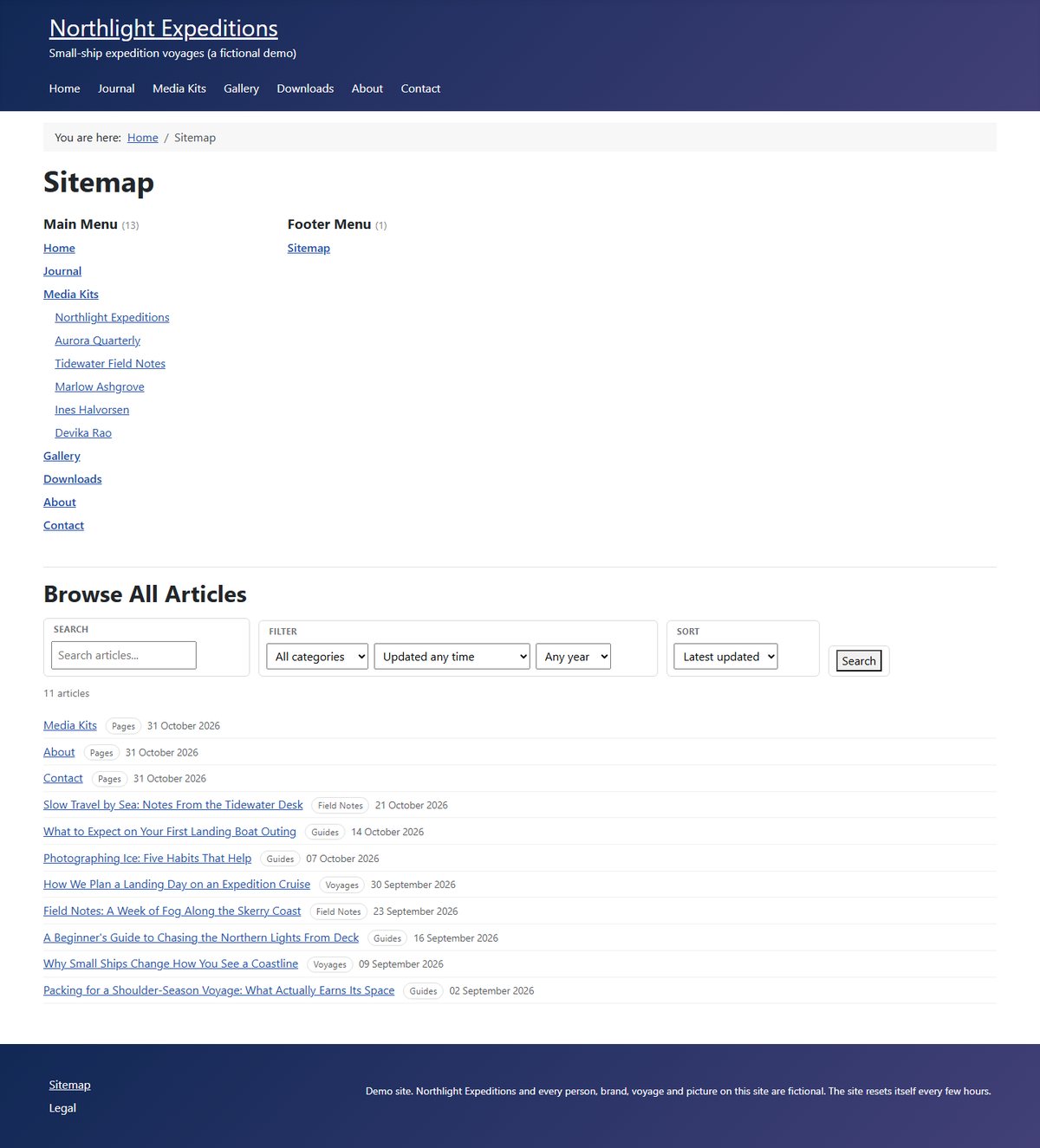
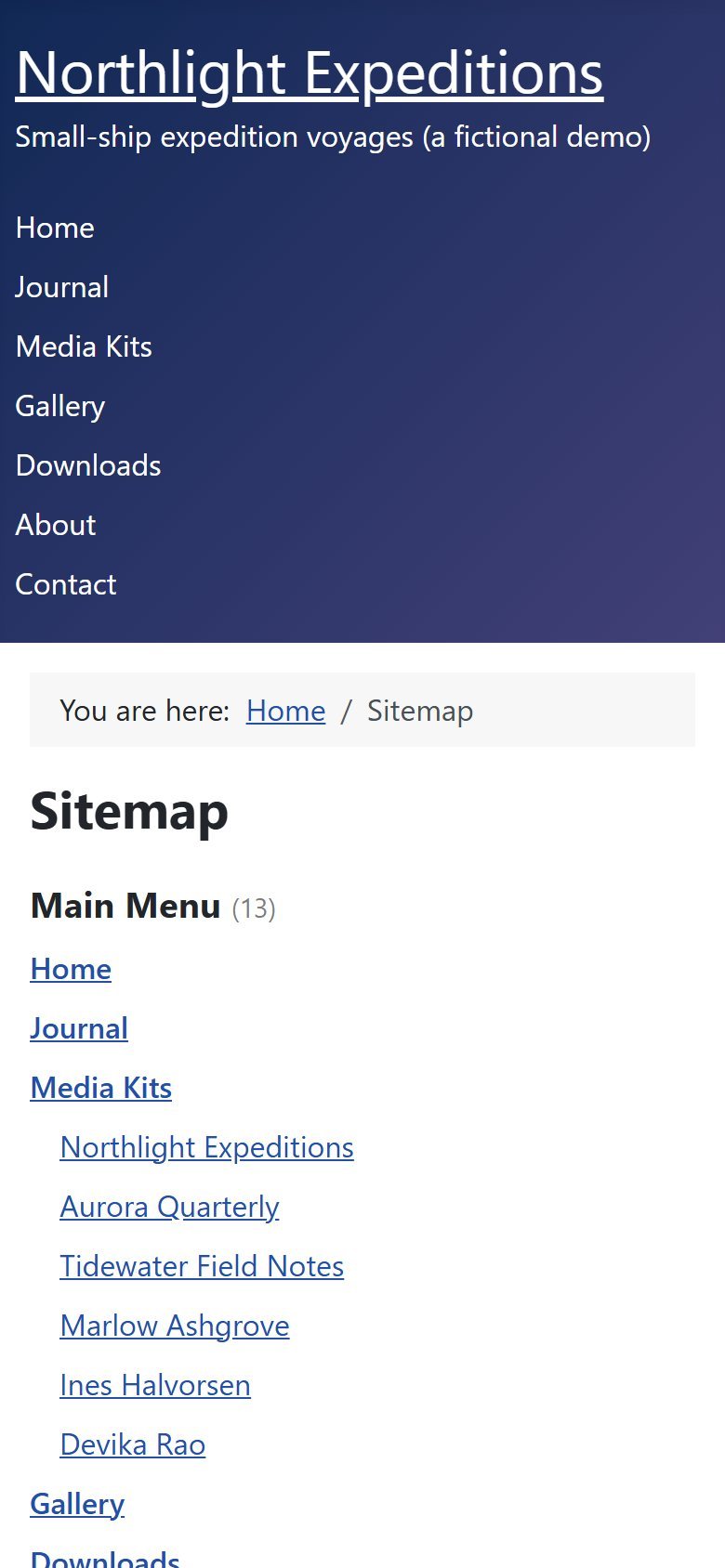
The Public HTML Sitemap
Add a menu item of type FlowMap, Sitemap to show the public page. Its Display Options are Show Menu Sections, Show Section Titles, Show Article Directory, Include Menus and Exclude Menus. The directory is searchable and filterable, and uses Joomla Smart Search for full-text search when it is available, falling back to title matching otherwise.

Scheduled Builds
The serving plugin rebuilds the inventory when content changes. For a regular rebuild on top of that, use Joomla's Scheduled Tasks.
- Open System, then Scheduled Tasks, and create a new task.
- Choose the task type "FlowMap - Rebuild Sitemap" (from the Task - FlowMap plugin).
- Set how often it should run and save.
The task marks the inventory as needing a rebuild and requests /sitemap.xml, so the build runs in site context. Joomla's scheduler must be set up on your server for tasks to fire. The Dashboard's Awaiting verification card shows the page-checking backlog. The link checker works in bounded runs, so the backlog drains across builds.
Robots and Sitemap Submission
Search engines find your sitemap through robots.txt or through a direct submission.

- Set "Manage robots.txt Sitemap line" to Yes if you want FlowMap to look after the line. Each build then makes sure
robots.txtdeclares this site's sitemap and removes Sitemap lines whose addresses answer anything other than 200. A different sitemap that is still live is never removed, and only raises a Health warning. Only Sitemap lines are touched, and every change is logged in the build detail. - With it set to No (the default), add the line yourself:
Sitemap: https://www.example.com/sitemap.xml. The Health row "robots.txt" tells you what is declared and what is expected. - Submit
https://www.example.com/sitemap.xmlin Google Search Console and Bing Webmaster Tools. Submit the index only, not the segment files. /sitemap-all.htmlis served noindex and is not in the XML index. Do not submit it.
Agent Markdown
FlowMap can serve a markdown copy of an article to automated clients. It is served only when requested explicitly, by adding .md to the article address or by using the format or output parameter. Article pages advertise it with a <link rel="alternate" type="text/markdown"> tag. Only articles an anonymous visitor could read are served. If a shortcode cannot be expanded, FlowMap serves the normal HTML page and adds an item to the Inbox.
Troubleshooting and FAQ
The Sitemap Says "Not Generated Yet"
Run Rebuild Now, or request /sitemap.xml once. If it still fails, check the Health rows "Serving plugin" and "Sitemap responds". The System - FlowMap Serve plugin must be enabled.
Health Says the Last Build Ran in Admin Context
URLs from a build run only in the administrator may differ from the live site's router. Use Rebuild Now, which also requests the public sitemap, or wait for the next front-end request.
The Sitemap Lists Tag Pages That robots.txt Blocks
The Health row "Tag pages vs robots.txt" warns about this. Either switch off Include Tag Pages, change robots.txt, or hold the tag paths out with Exclude URL Patterns.
A Share Image Did Not Change on the Live Page
Share tags are baked into cached HTML. Saving a page record, Refresh social and Populate Share Images clear the cache for pages whose output changed, and a build does the same. If the page cache sits behind another cache layer, clear that layer too. Make sure Emit Social Tags is on and any other social sharing tool is off.
Many Pages Share No Image
The Health row "Share images" counts them. Set a Default Share Image, or Category Default Images, then click Populate Share Images.
A Route Is Rejected
The error says why. Common reasons are a reserved path, a wildcard, a path another route already claims, a path that belongs to a live page, or a path that already serves something live. Pick a different path, or fix the other cause.
The 404 Numbers Look Too High
Check the Error Type filter. The screen opens on issues, and scanner traffic is filed as noise. Open rows with no recent hits move to Archived after the Unresolved Recency Window. To zero the history, use Start Fresh.
Start Fresh Is Disabled
Joomla's Redirects manager still holds old unpublished rows. Use the "Open Redirects manager - Purge" link, purge them, then come back.
Directory Search Only Matches Titles
Smart Search is unavailable or out of date. Enable com_finder and the Content Smart Search plugin and build the index. The Health row "Directory search" says which case applies.
The Branded 404 Page Is Not Showing
Check that Enable Custom Error Pages is on, that at least one enabled 404 page exists under Error Pages, and that the System - FlowMap Error Pages plugin is enabled. If the Health row "Error pages" says safe mode, set or publish the Rich Mode Menu Item.
A Gate Does Nothing
Gate rows are stored without the Gate plugin but only the plugin acts on them. Install and enable System - FlowMap Gate.
Health Reports a Version Mismatch
The package, component and database version should agree. A partial install or an out-of-band update can leave one behind. Reinstall the package over the current version. The plugins move on their own schedule and are not compared.
License
FlowMap is released under the GNU General Public License version 3.